1 Physical SIM setup
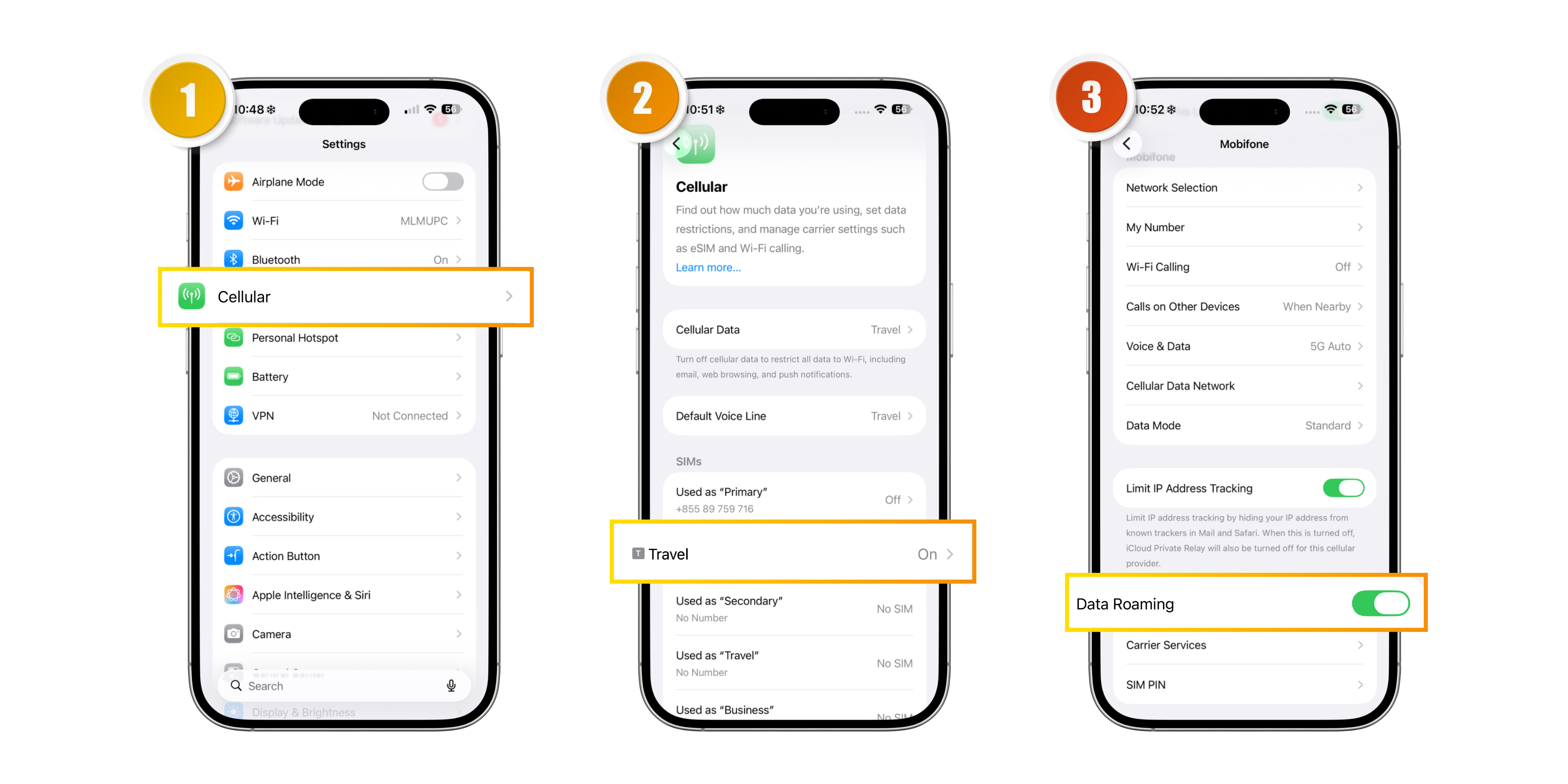
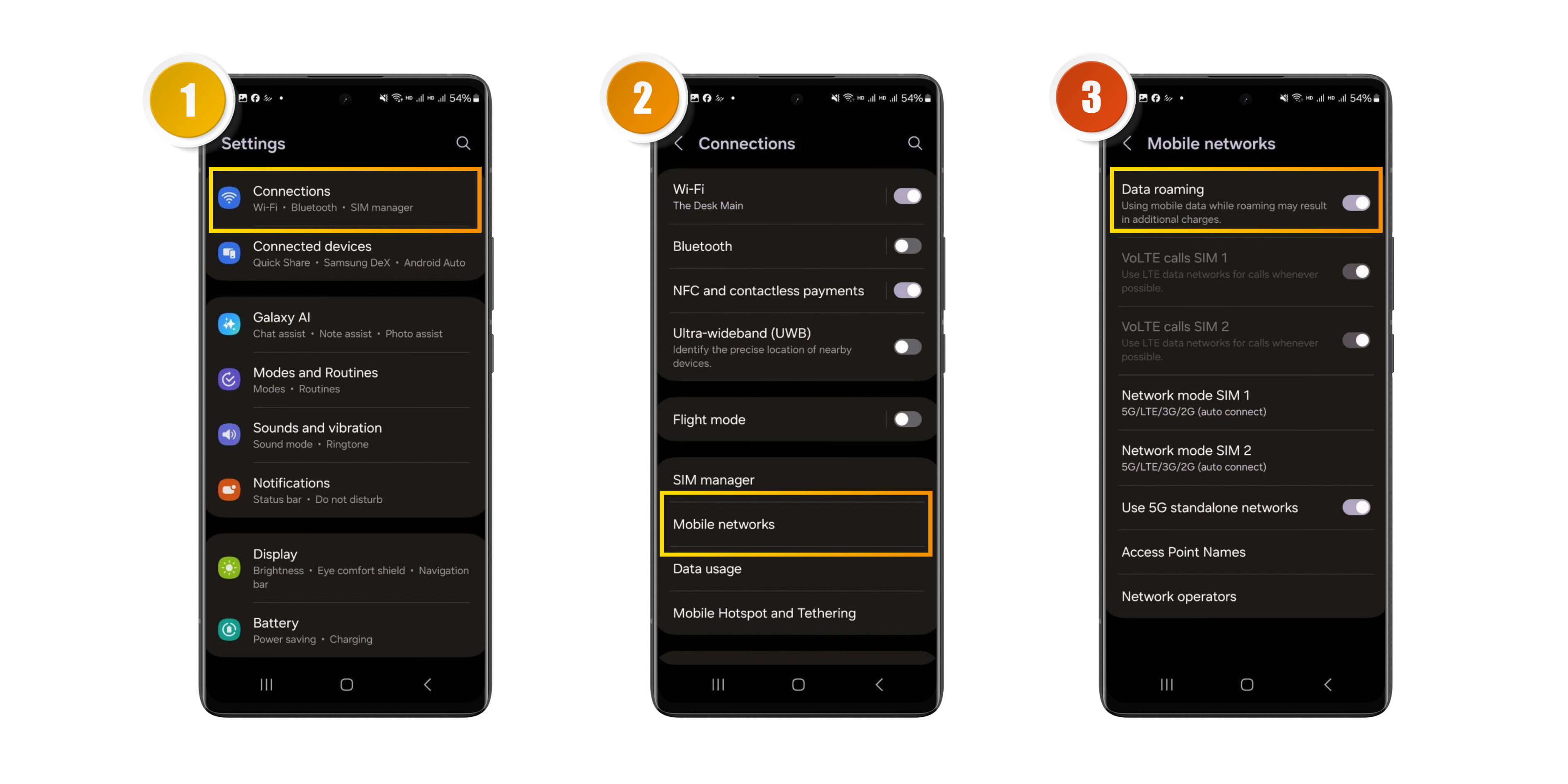
Upon arriving at your destination, insert your SIMCARD TRAVELLER into your mobile phone. Make sure that Mobile Data and Data Roaming are switched on. Please wait for about 2 minutes while the SIMCARD TRAVELLER automatically searches for and connects to the local network.
Once connected, your phone will display the signal bars and the carrier name, and you can begin using your data service.
If you still cannot access the internet after the setup, please restart your mobile phone and try again.
1.1 Physical SIM setup - iOS
1.2 Physical SIM setup - Android
If the connection fails, it may be caused by weak mobile coverage in your current location. Please move to another area and restart your device. When crossing borders between countries, some mobile phone models may require two restarts for the network to update properly.
2 eSIM setup
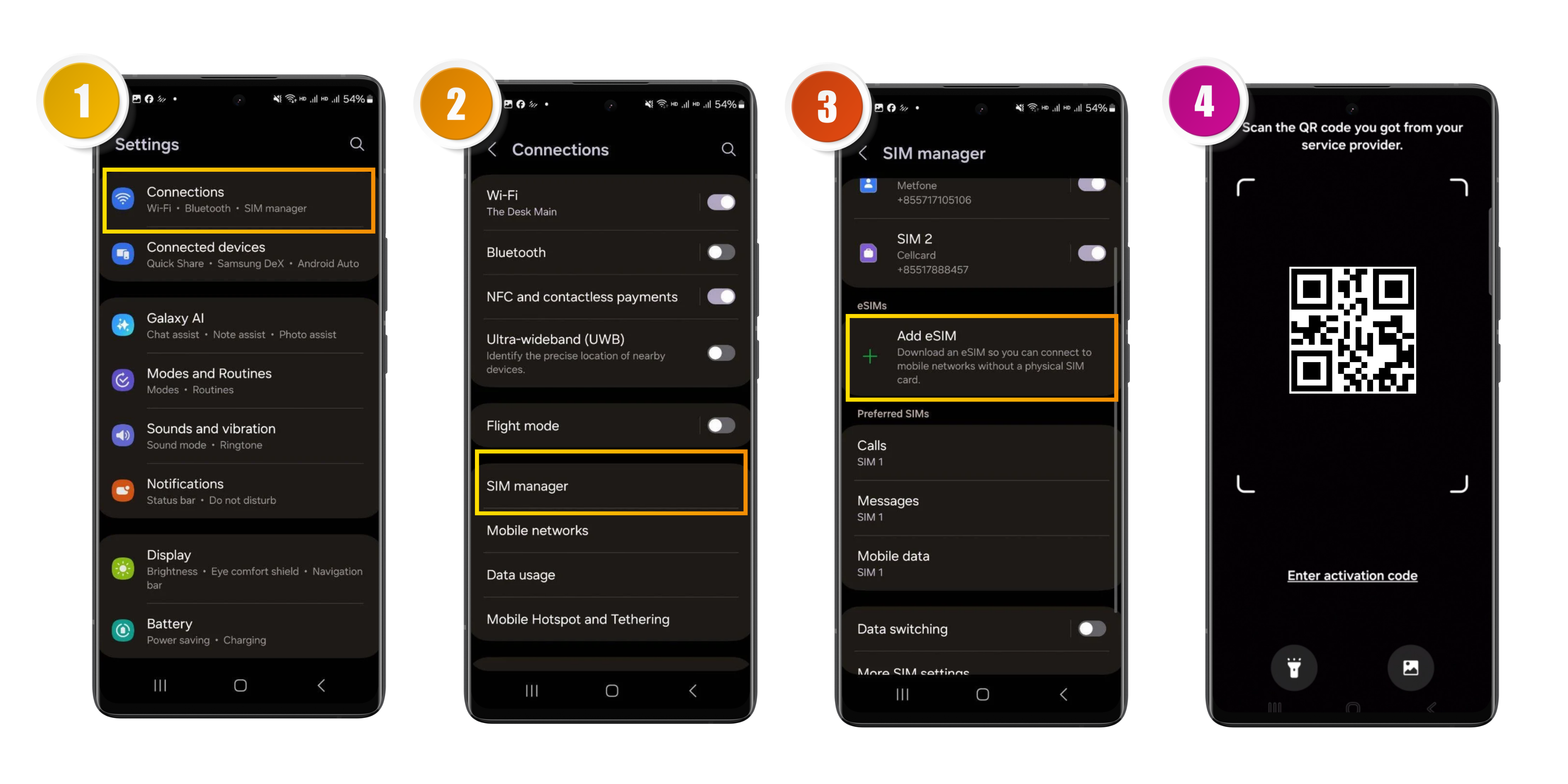
Upon arriving at your destination, activate your SIMCARD TRAVELLER eSIM on your device. Make sure Mobile Data and Data Roaming are enabled. Allow about 2 minutes for the eSIM to automatically search for and connect to the local network.
Once the connection is established, you will see the signal bars and the carrier name on your device. You can now start using your data service.
If the internet is still not working after setup, please restart your device and try again.
2.1 eSIM setup - iOS (iPhone)
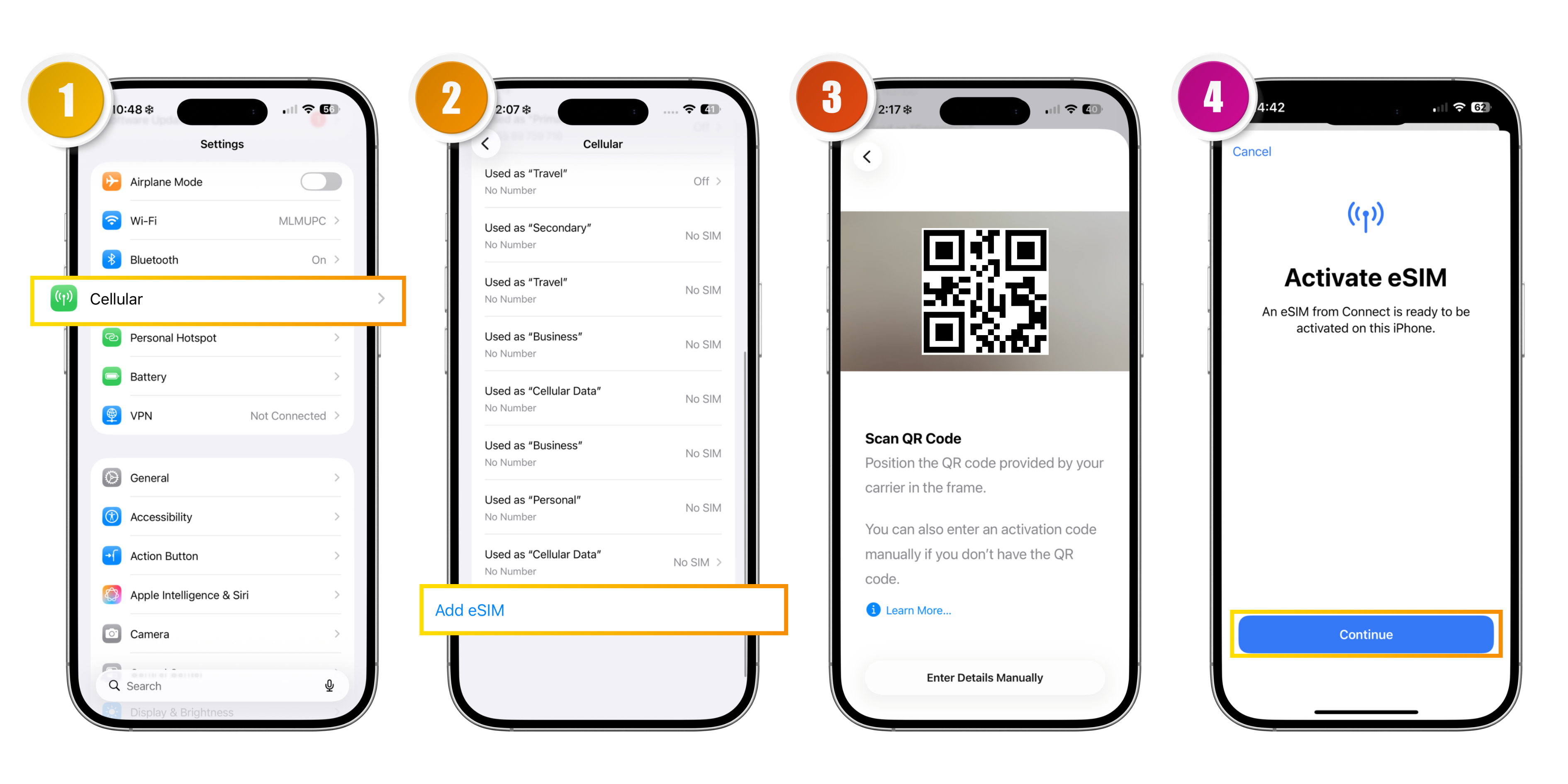
2.2 eSIM Setup - Android (Samsung)